Add Deposit / Cart Fees to Shopify POS (One-time + Multiple)
Create and manage one-time and multiple DepositFee rules on Shopify POS
Pfand fees were previously limited to Shopify Online Store. Now DepositFee also works with Shopify POS for both multiple and one-time fee flows.
Demo

Note: The above demo uses Bundle with Product fee strategy.
Installation & Working
Click to Watch the below demo
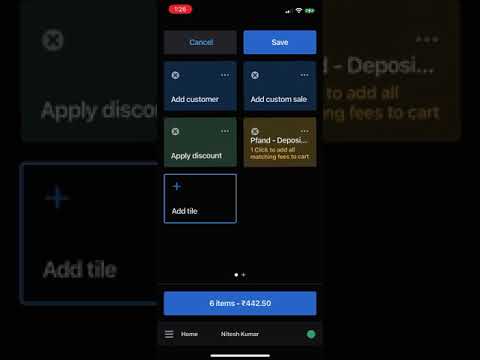
Note: The above demo uses Bundle with Fees fee strategy.
Strong features of DepositFee POS:
- One Click to apply all the fees to current transaction
- Supports Percentage fees / Fixed fees
- Apply Fixed Fees to Bundles (6 x wine bottle = 0.25*6 auto applied )
- Available as Tile on POS screen
- Supports Cash Rounding. (nearest 0.05)
- Supports functionality to calculate fee on subtotal or grand total .
Works for Multiple Fees (per matched product quantity) and One-time Fees (single fee per transaction when conditions match).
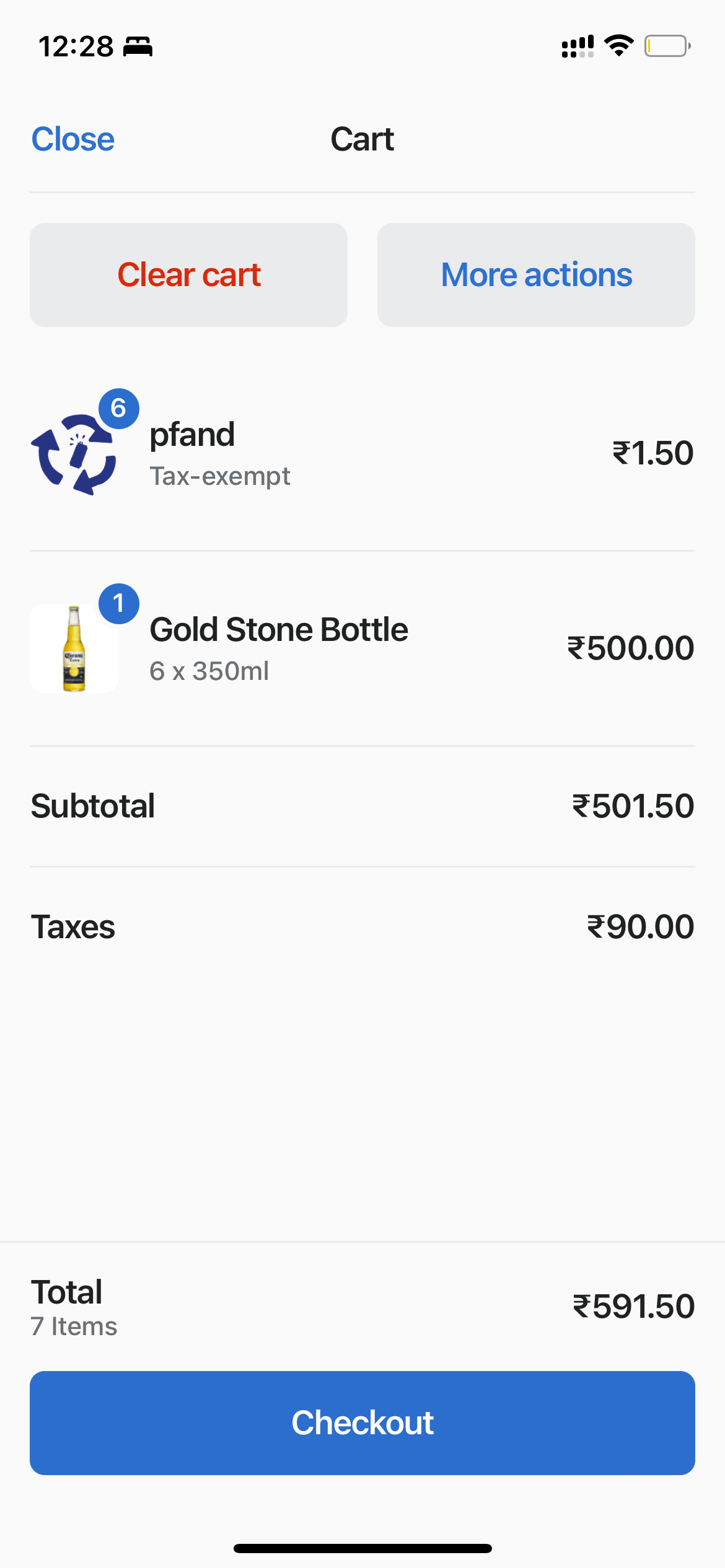
Strategy behavior on POS
POS now has clear behavior by strategy and fee type:
- Bundle with Product (
bundle_product) is recommended for cleaner checkout/cart presentation. - Multiple + bundle_product: handled automatically by transform logic from matched product lines.
- One-time/Single + bundle_product: POS adds parent fee item; amount is then handled by rule logic.
- Bundle with Fees (
bundle_fee): existing separate-fee style behavior remains.
Why this helps
- Fewer manual adjustments for linked product fees.
- Cleaner cart behavior with bundle-product strategy.
- Better consistency between Online and POS behavior.
For strategy details and setup guidance, see:
How to create fees for Shopify POS
Use these steps from the Dashboard:
- Open DepositFee and click Create Fee.
- Choose Fee Type:
- Fixed (flat amount), or
- Percentage (for example
10= 10%).
- Choose fee behavior:
- Multiple: apply per matched product quantity.
- One-time/Single: apply once per cart when conditions match.
- In Fee Strategy, select:
- Bundle with Product (recommended), or
- Bundle with Fees.
- Configure matching conditions:
- Product condition,
- Cart condition (quantity/price),
- condition match mode: ANY or ALL.
- Set Platform to POS (or All).
- Set fee Active and click Save.
Quick setup examples
Example A: Multiple fee (per product)
- Type = Multiple
- Fee Type = Fixed (e.g.
0.25) or Percentage - Select linked products in Product condition
- Strategy = Bundle with Product
- Save and test with different quantities
Example B: One-time fee (once per transaction)
- Type = Single/One-time
- Fee Type = Fixed (e.g.
5.00) or Percentage - Use Cart condition (e.g. qty > 4 or price threshold)
- Strategy = Bundle with Product (recommended) or Bundle with Fees
- Save and test by changing cart totals/qty
How to test on POS
- Open Shopify POS and add products to cart.
- Tap Apply Fees tile.
Clicking on Apply Fee tile is not required for multiple + bundle_product fees, which are handled automatically when products are added/updated.
- Verify expected behavior:
- Multiple fee follows matched product/cart rules.
- One-time fee applies once when conditions are satisfied.
- Change quantities or products and re-check fee behavior.